 Rusteau-1D Help
The main window
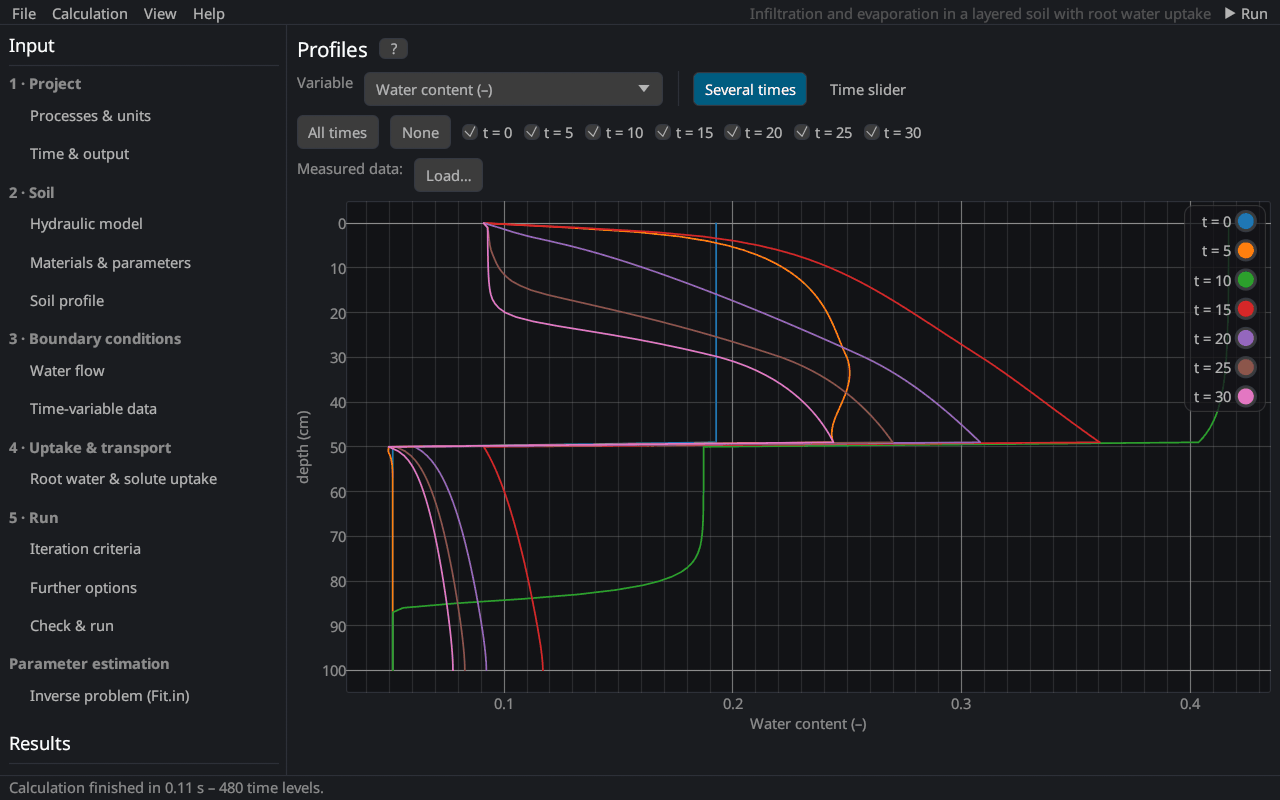
Menu bar
| Menu | Commands |
|---|---|
| File | New project (Ctrl+N), Examples, Open project (Ctrl+O, .h1dr or a HYDRUS-1D .h1d), Import HYDRUS-1D project folder…, Import optimization file (Fit.in)…, Save (Ctrl+S), Save as… (Ctrl+Shift+S), Save as HYDRUS-1D project, the option Save also writes a HYDRUS-1D project, Export results (CSV)…, Quit – see Projects and files |
| Calculation | ▶ Run (F5) and ■ Stop |
| View | Figures (new window)… – the figure editor; dark and light theme |
| Help | help on the current page (F1), contents, getting started, theory, references, the help in the web browser, export of the HTML help, keyboard and mouse, about |
At the right end of the menu bar are the project title (with * when there are unsaved changes) and the ▶ Run button (▶ Run (inverse) for a parameter estimation, ■ Stop while a calculation runs).
Navigation panel
The left panel lists the input pages in the steps of a project (workflow):
- Project: Processes & units, Time & output
- Soil: Hydraulic model, Materials & parameters, Soil profile
- Boundary conditions: Water flow, Time-variable data (with time-variable or atmospheric conditions), Meteorological data (with meteorological ET)
- Uptake & transport: Root water & solute uptake, Heat transport, the five solute pages – each shown only when the process is switched on
- Run: Iteration criteria, Further options, Check & run
and Parameter estimation with the page Inverse problem (Fit.in). Below follow the results pages; they are enabled after a run (the soil hydraulic properties can be viewed at any time). The last entry, 📈 Figures, opens the figure editor in a window of its own (with the number of figures of the project).
Pages
Every page has a title with a ? button that opens its help topic (as F1). Inputs show a tooltip with their meaning, unit and typical values when the mouse rests on the label or the value:
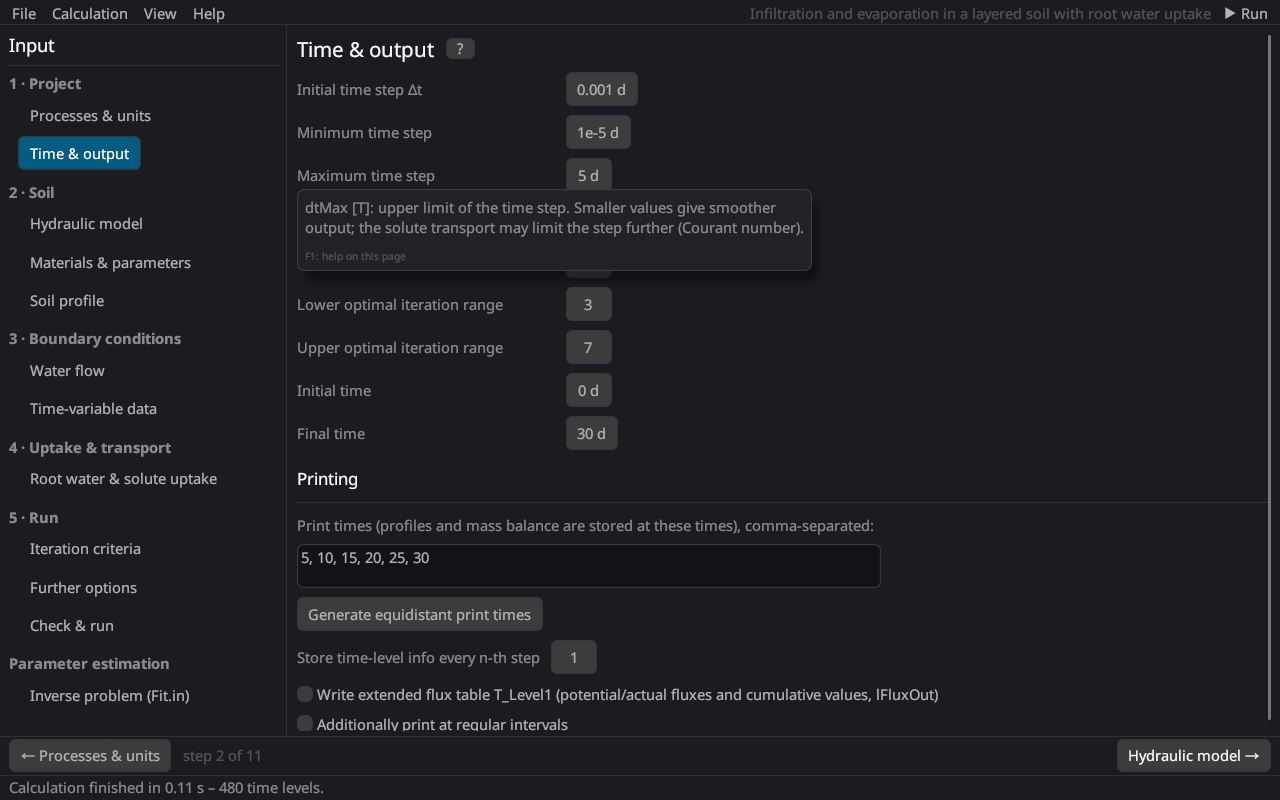
Number fields accept typing (click, type, Enter) and dragging with the mouse; a comma is accepted as decimal separator and d / D as exponent (1d-3, as in Fortran files). While a number is typed, other characters (letters, blanks, units) are ignored; whole-number fields (numbers of nodes, solutes, iterations …) accept only digits and the minus sign. A value that is still not a number when the field is left (e.g. 1e) is discarded and the field keeps its previous value. Changes mark the project as modified.
Workflow bar and status bar
On the input pages a bar at the bottom leads to the previous and the next page of the workflow (step k of n); on the last page it runs the calculation. The status bar shows messages (files written, problems, the end of a run) and, during a run, a progress bar with the current time.
Help window
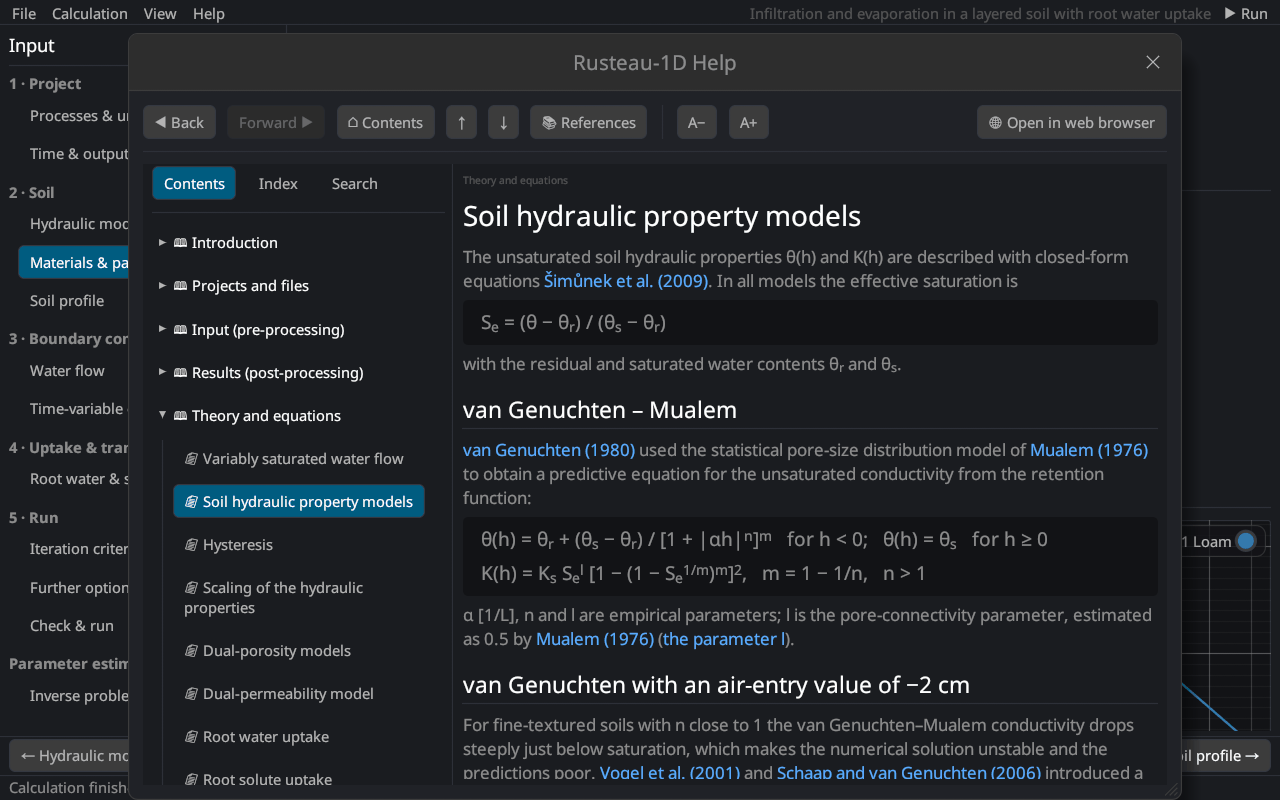
The help window has a table of contents, a keyword index and a full-text search, back and forward buttons (Alt+← / Alt+→), buttons for a larger or smaller text, and Open in web browser, which writes the help as HTML pages and opens the current topic in the browser.
Drag and drop
Dropping a .h1dr file, a HYDRUS-1D .h1d file or a HYDRUS-1D project folder (or any file in it) onto the window opens it; while dragging, the window shows what the drop would do.
Themes
View → Dark theme / Light theme switches the colours. Plots are meant for inspection; for figures use the CSV output.